

Widgets Overview
Pledge widgets are ready-made pieces of giving UI that you add to your own
pages. Each one takes a single <div> plus our embed script, which loads it in
an <iframe> served by Pledge. Pledge handles the nonprofit data and the
payments, so you can add search, donations, and progress tracking to your site
without writing any server code.
There are four widgets:
| Widget | What your visitors do with it | What you need to embed it |
|---|---|---|
| Donation form | Donate to a fundraiser or a nonprofit | A widget ID, or your partner key plus a fundraiser ID or EIN |
| Organization search | Find and choose a nonprofit | Your partner key |
| Fundraiser tracker | See how close a fundraiser is to its goal | Your partner key and a fundraiser ID |
| Impact calculator | See the total raised or impact achieved | An impact calculator ID |
Donation Form
Section titled “Donation Form”A complete checkout for giving. Donors choose an amount, give once or monthly, and pay without leaving your page. You choose which of 12 payment methods they see: Apple Pay, Google Pay, card, PayPal, Venmo, bank, crypto, stock, donor-advised funds, wire, check, and a pledge to pay later. When a donation completes, the form sends your page a message, so you can thank the donor or update your own records.
The form comes in two layouts. Each fundraiser uses one of them: your
account’s default, or the one you choose with
donation_flow when you create the
fundraiser through the API.
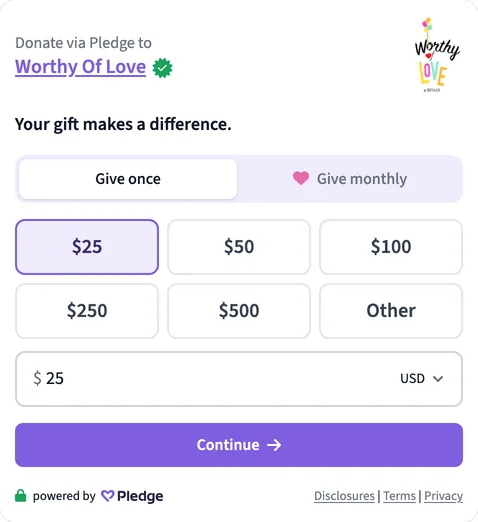
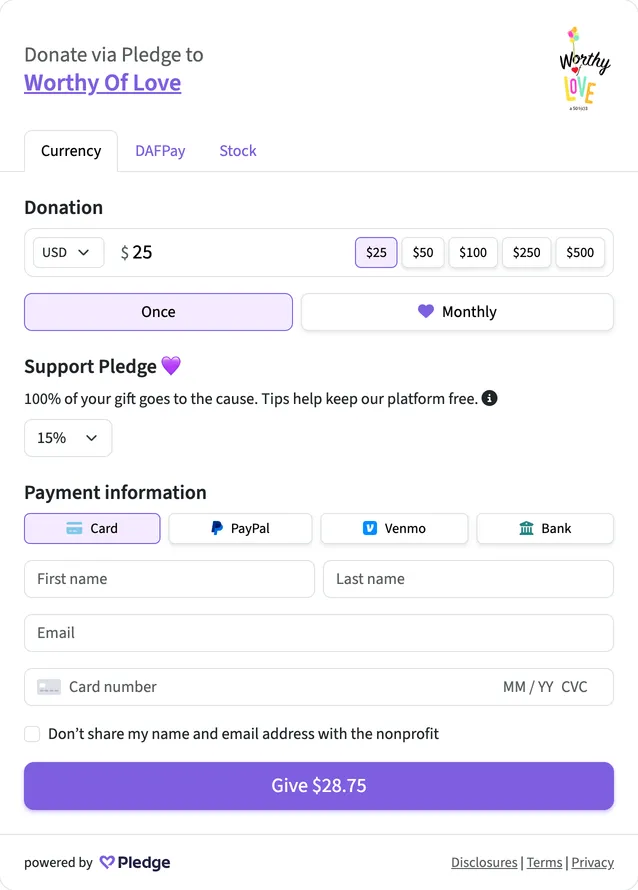
Embed the form in your page, or open it in a dialog from a button you style yourself. Use it to add a donate section to a campaign or nonprofit page, to collect donations for a fundraiser you created, or to let users donate to any nonprofit by its EIN without creating a fundraiser first.
Try it in the sandbox
Organization Search
Section titled “Organization Search”A typeahead search over Pledge’s nonprofit database. When a user picks a nonprofit, the widget sends your page its ID, and your code decides what happens next: often creating a fundraiser for that nonprofit through the API. You can feature a suggested nonprofit, or let users choose several.
Use it when your users decide where money goes: a seller choosing a charity for their listing, a family choosing one for a memorial, or an employee choosing one for a fundraiser.
Fundraiser Tracker
Section titled “Fundraiser Tracker”A compact progress card for one fundraiser. It shows the amount raised against the goal with a progress bar, or the amount raised and number of donors when the fundraiser has no goal. An optional Donate button opens the fundraiser in a new tab, or tells your page to open an embedded donation form.
Use it next to a fundraiser on your site, such as a memorial page, a team fundraiser, or a campaign landing page.
Impact Calculator
Section titled “Impact Calculator”A live counter of the giving on your account. It shows either the amount raised, like “$12,480 raised for Surfrider Foundation”, or that amount converted into impact, like “3,120 people provided with clean drinking water for one year”. You choose the icon, color, wording, and the formula that turns dollars into impact, and you can limit it to particular nonprofits. Visitors can flip the card over to read more about the cause.
Use it to show customers, employees, or members what your giving program has achieved together.
How the Widgets Work Together
Section titled “How the Widgets Work Together”The widgets can be used on their own or combined. Some common combinations:
- Choose a cause, then raise money for it. A user picks a nonprofit in the organization search. Your server creates a fundraiser for it with the Fundraisers API. Your page shows that fundraiser’s tracker, and its Donate button opens the donation form. The Memorial Platforms guide walks through this flow.
- Add giving to a page you already have. Embed a donation form for an Impact Hub fundraiser, or for any nonprofit by its EIN.
- Show what your program has achieved. Put an impact calculator on a landing page, a dashboard, or an annual report.
Widgets or the API?
Section titled “Widgets or the API?”Widgets are the fastest way to get started. Pledge hosts the UI and processes the payments, and you can match the widgets to your brand with options such as a brand color.
The REST API is for when you want to build the experience yourself: search nonprofits and show the results in your own UI, create and update fundraisers, or record donations you collected yourself. Many integrations use both, for example creating fundraisers through the API and showing them with widgets.
Before You Embed
Section titled “Before You Embed”- Every widget needs our embed script, once per page.
- Most widgets need your partner key, which you’ll find in the Impact Hub.
- To try widgets without real money, use the sandbox and its test card.